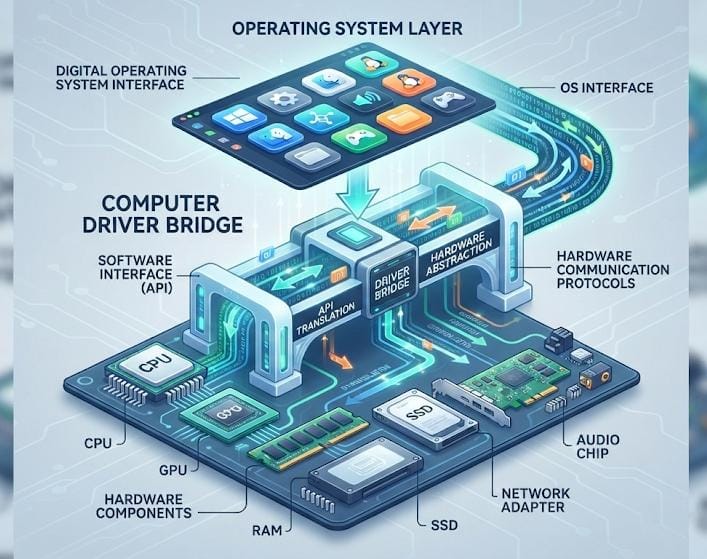
While using a computer, we often focus on software, games, and apps, but there is a silent yet powerful system inside the machine without which our computer would just be a lifeless box of metal. This system is called “computer drivers.” If you have ever wondered how a newly connected USB or printer starts working instantly, the magic behind it is the driver. In today’s detailed post, we will understand the world of drivers.
What is a Driver?
In simple terms, a driver is a small software program that acts as a “translator” between your operating system (Windows, Mac, or Linux) and your computer’s hardware (printer, graphics card, sound card).
Hardware and the operating system speak different languages. The hardware does not know what instructions Windows is giving it, and Windows does not know how to run that specific printer. The driver is the language through which both can understand each other.
Why are drivers important?
Without drivers, your computer cannot become a fully functional machine. Their importance is clear from the following points:
- Bridge between hardware and system: Drivers ensure that data is exchanged correctly between hardware and software. If a driver is missing or corrupted, your device (e.g., camera or mouse) will not work.
- Improved performance: Having new drivers is especially crucial for graphics cards (GPUs). Graphics card manufacturers (like NVIDIA or AMD) constantly release new drivers that optimize your computer’s speed for new games and software.
- Security and stability: Updates are often released for drivers to fix security vulnerabilities. Old or faulty drivers can cause your computer to crash repeatedly.
Signs of driver issues
If you notice the following problems on your computer, understand that you need to update your drivers:
- Unknown device error: A yellow mark appearing in the Device Manager.
- System slowdown: The computer suddenly stuttering or running slowly.
- Hardware not working: The printer, scanner, or speakers suddenly stop responding.
- Game crashes: Games not running due to outdated graphics card drivers.
How to keep drivers updated?
There are several ways to keep drivers updated:
- Windows Update: Windows automatically installs most drivers.
- Developer’s website: Always download drivers directly from the official website of the hardware manufacturer (e.g., HP, Dell, or Logitech).
- Device Manager: Open ‘Device Manager’ in Windows, right-click on the device, and select ‘Update Driver.’
- Warning: Avoid “automatic driver updater” apps found on the internet, as they often contain viruses.
Conclusion
Computer drivers are the hidden heroes that work behind the scenes to keep your system running smoothly. Whether you are a casual user or a high-end gamer, having basic knowledge of drivers can save you from many technical issues. At “Small to Big Tech,” our advice is to always keep your system updated and avoid installing unnecessary software. When your hardware and software are in sync via drivers, your experience will be at its best.
Have you ever seen a device not working due to driver issues? Do share your experiences in the comments!
Stay connected with “Small to Big Tech” for more insights into technology and PC optimization tips!